Site Page Lot Batch Tab
When you enter a Warehouse Site Page, it defaults to the Lot Batch tab. From this tab, you can see your inventory grouped by lot number.
info
This page supports the following list interactions: searching, filtering, sorting, and exporting.
For more information, refer to Working with Lists.
Lot Batch Card Details
Each card in the Lot Batch tab represents a Lot Batch Number and groups all products from that Lot Batch into that single card. At a glance, the card shows the following details:
- Lot number
- Item Description
- Total weight in pounds
- Total number of railcars
- Total number of boxes
- Total number of bags
- Total number of supersacks
- The earliest date the lot batch was checked into the inventory

Lot History
When you click on a lot batch card, its lot history expands to the right. This provides you with a detailed list of all the actions taken on that specific lot, including:
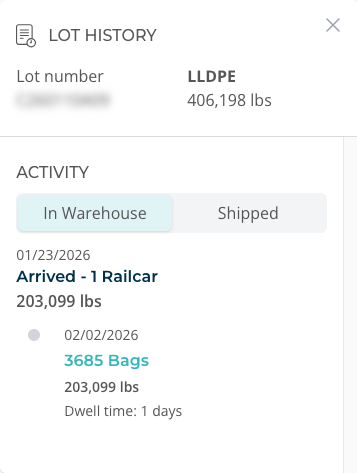
- Total weight upon arrival
- Date of arrival
- Weight left in the original configuration
- Any completed orders against that lot batch, including the information about order date, configuration, quantity and configuration type, total order weight, and dwell time from order completion