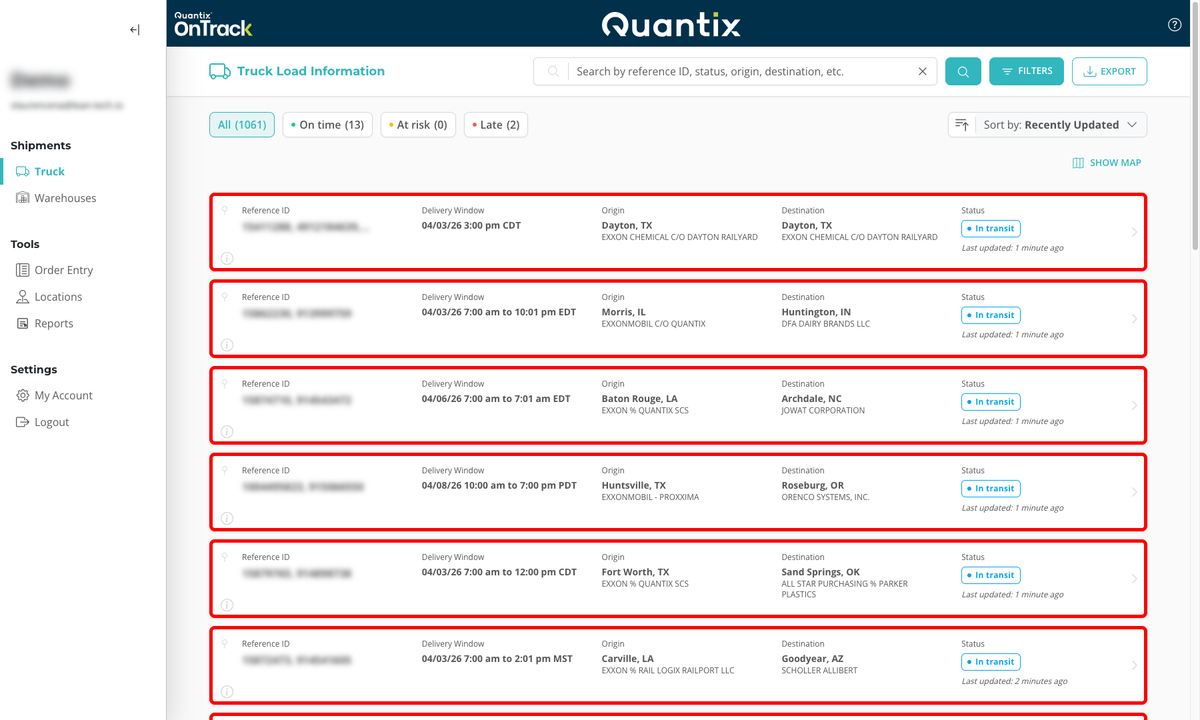
Navigation
The OnTrack interface uses three navigation levels to help you move quickly between areas:
- Global navigation (left-side menu)
- Module navigation (tabs or section selectors)
- Page-level navigation (sub-tabs inside a selected page)
Understanding these levels will help you find the right information with fewer clicks.
Global Navigation (Left-Side Menu)
Use the left-side menu to switch between major modules of OnTrack.
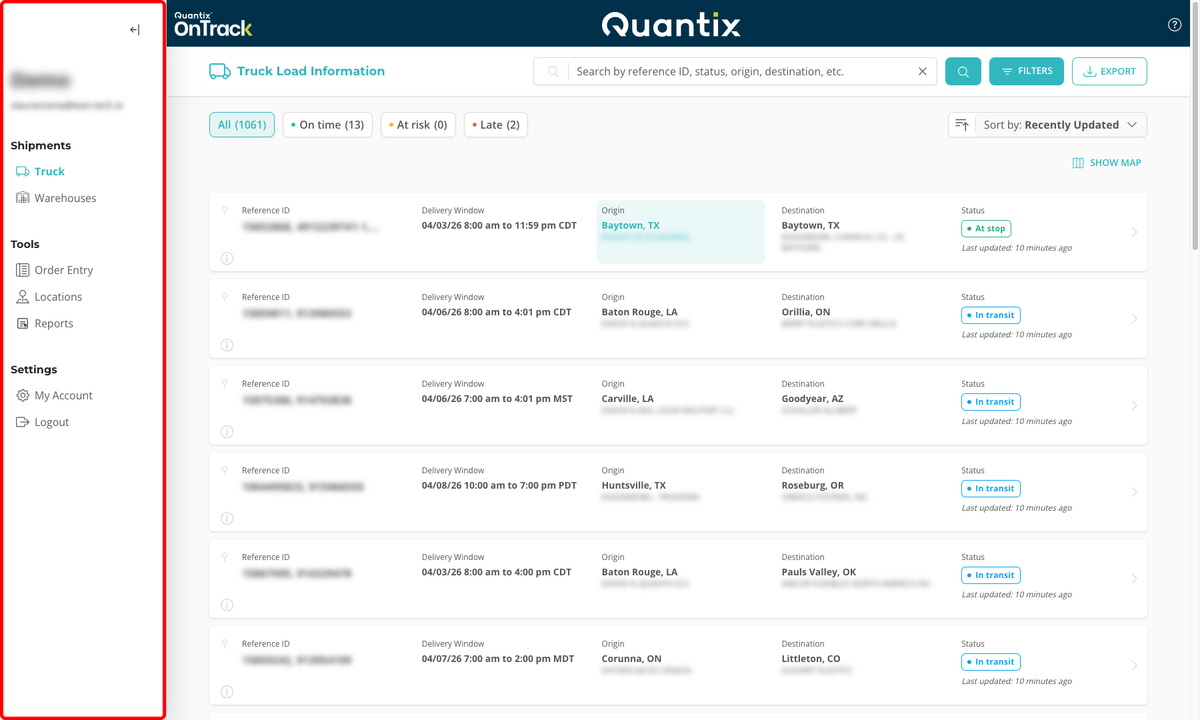
From this menu, you can:
- Open operational modules (for example, Truck, Rail, or Warehouses)
- Jump directly to order workflows through Order Entry.
- Access account and user settings through My Account
- Logout of the system by clicking the Logout button at the bottom of the menu.
Tab Navigation
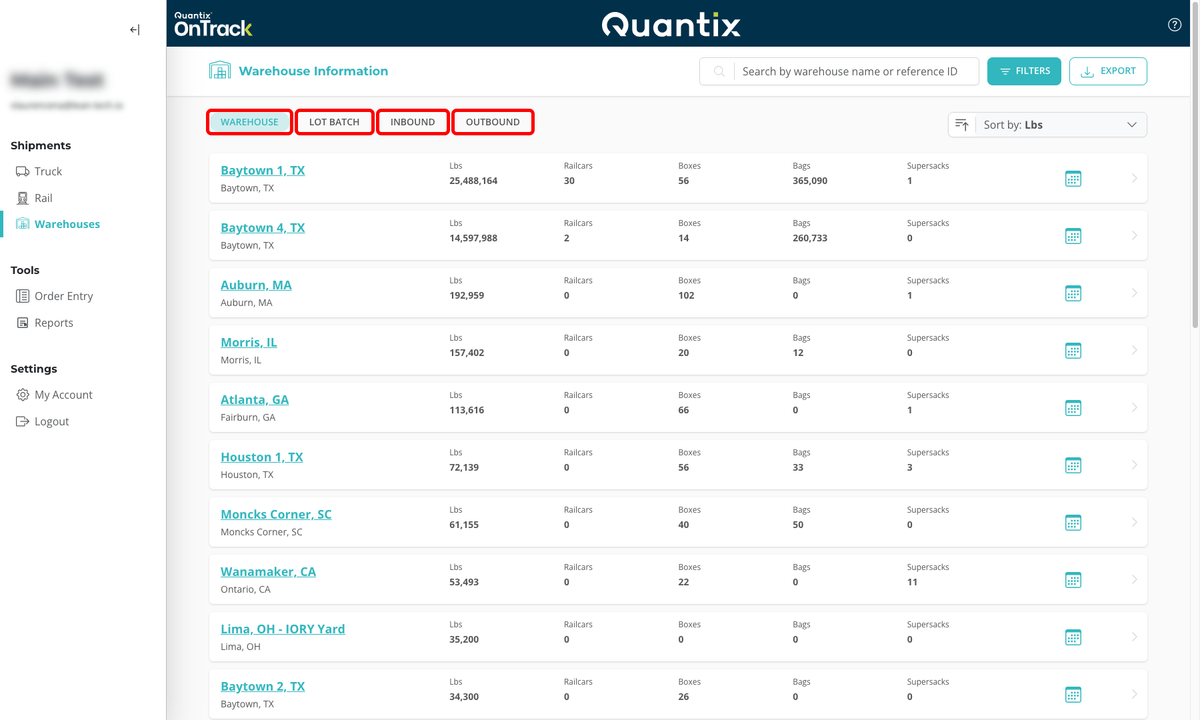
After selecting a module from the left-side menu, use the module-level tabs to switch between related workflows.
For example, in the Warehouses module, you can move between the tabs like Warehouse, Lot Batch, and other warehouse workflows.
Item-Specific Details
Inside pages, there are cards, in general clicking those cards will open a details page for that specific item.
For example, clicking on a specific rail load card will open the details page for that truckload