Changing Password
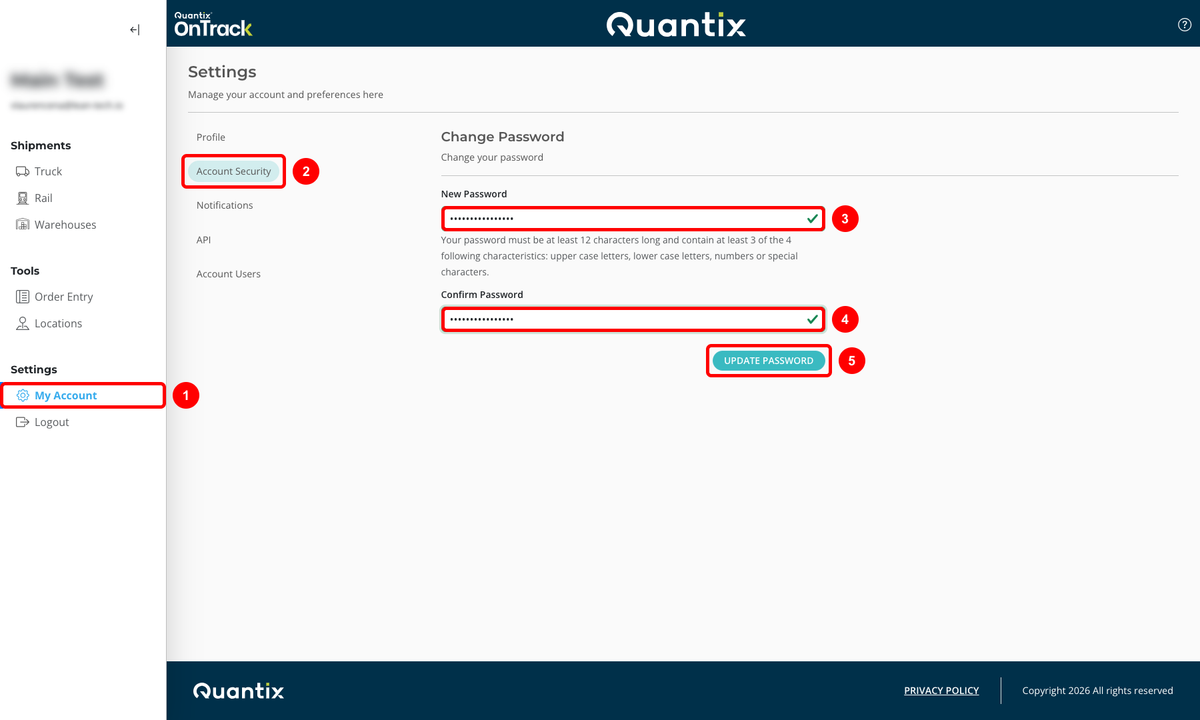
To change your password, you need to follow these steps:
- Click on My Account on the left side navigation menu.
- Go to the Account Security section.
- Complete the New Password field.
info
Your password must be at least 12 characters long and contain at least 3 of the 4 following characteristics: upper-case letters, lower-case letters, numbers, or special characters.
- Retype the password in the Confirm Password field.
- Click UPDATE PASSWORD to save your new password.
A success message will prompt at the top of the screen, indicating that you have successfully changed your password.
