
Site Page Inventory Tab

The Inventory tab of the Warehouse Site Page can be accessed using the tab directly under the search bar.
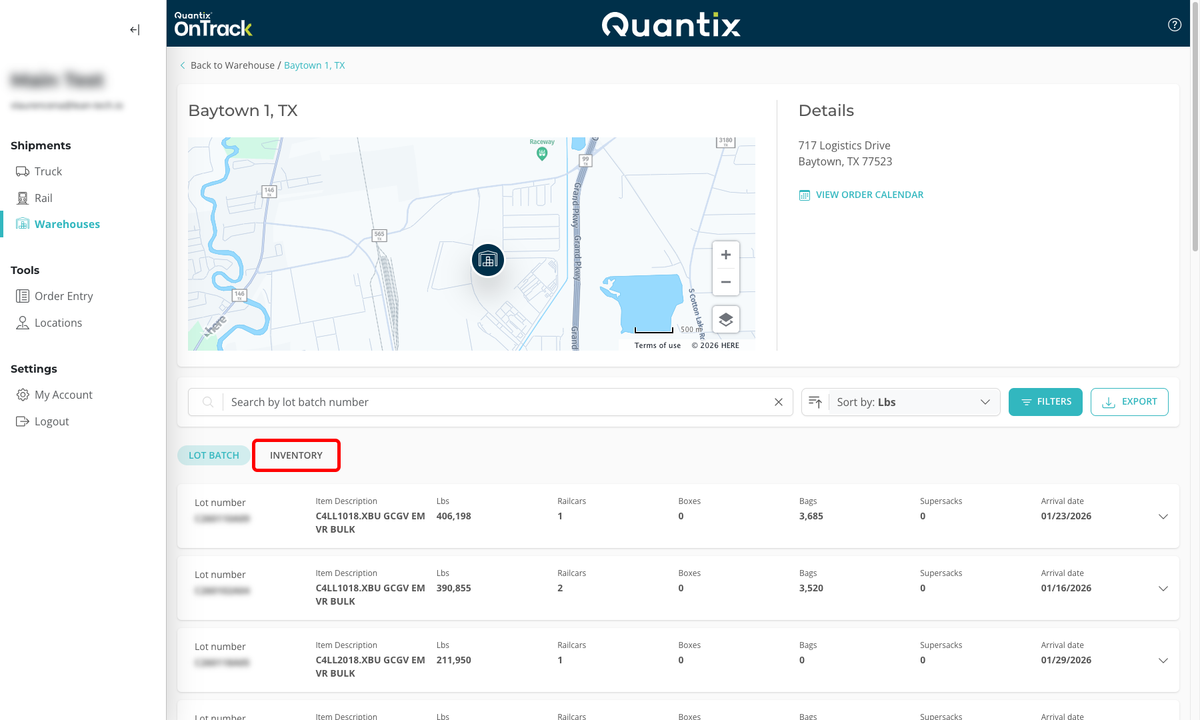
Inventory tab main page example

The Inventory cards show each individual package listed by license plate number.

Searching for an Inventory

From the Inventory tab, you can search for products based on the reference ID (License Plate) or the Item Description using the search bar at the top.

Inventory search example

For instance, if you're looking for LDPE, just type it into the search bar, and you'll have your results.

Inventory search example

Filtering the Inventory

You can also use filters to find certain materials based on specific criteria. While in the Inventory section of the Warehouse Site Page, you can click the FILTERS button on the far right.

Inventory filter menu example From this point, you can choose to refine your results by any of the following criteria:

  • Configurations
  • Material
  • Arrival, either total dwell time or arrival date
  • Weight range

Filters can be used individually or in concert with one another. You can add as many filter criteria as you need to find the product you're looking for.

Sorting the Inventory

You can also sort the inventory on the Warehouse Site page by using the drop-down menu to the right to choose which criteria to search by Material, Configuration, Weight, Arrival Date, or Dwell Time.

Inventory sorting example

Once you choose the criteria you want to sort by, you can change the orientation of the criteria to either ascending or descending by selecting the arrow icon next to the drop-down box.

Inventory sorting direction example

Inventory Card Details

Each inventory card shows each individual package listed by license plate number with the following information:

Inventory card details example

  1. Reference ID (License Plate number)
  2. Lot Batch number
  3. Material type
  4. Configuration
  5. Item Description
  6. Weight
  7. Arrival date
  8. Dwell time