Export
For creating an Export order, select Export as the Order Type in the Order Entry form.
This will display specific fields related to export shipments that need to be completed to submit the order.
First Section
This section includes information related to the warehouse order itself.
Depending on the Order Subtype selected, different fields will be displayed.
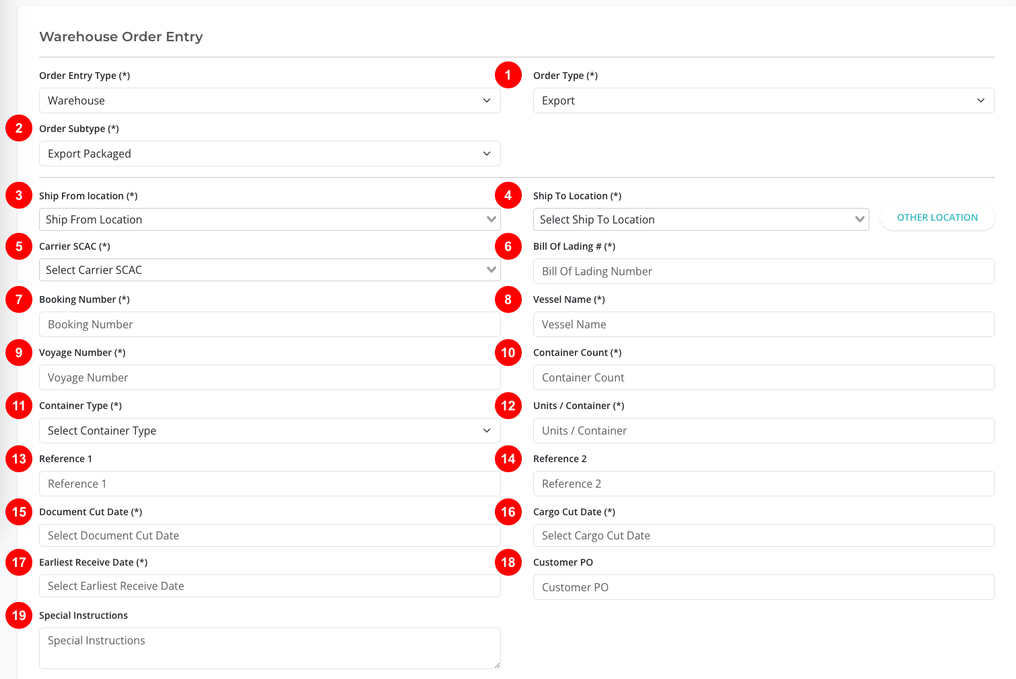
For Export Packaged
- Order Type (*): Select Export.
- Order Subtype (*): Select Export Packaged.
- Ship From Location (*): Select the origin location for the shipment.
- Ship To Location (*): Select the destination location for the shipment.
- Carrier SCAC (*): Enter the carrier's SCAC code.
- Bill Of Lading # (*): Enter the bill of lading number.
- Booking Number (*): Enter the booking number assigned for the ocean movement.
- Vessel Name (*): Enter the name of the vessel.
- Voyage Number (*): Enter the voyage number associated with the vessel movement.
- Container Count (*): Enter the total number of containers for this order.
- Container Type (*): Specify the type of container being used.
- Units / Container (*): Enter the number of units loaded in each container.
- Reference 1: Enter an internal or customer reference value.
- Reference 2: Enter an additional reference value, if needed.
- Document Cut Date (*): Select the document submission cutoff date.
- Cargo Cut Date (*): Select the cargo delivery cutoff date.
- Earliest Receive Date (*): Select the earliest date the cargo can be received.
- Customer PO: Enter the customer purchase order number.
- Special Instructions: Add any handling, routing, or processing notes for the shipment.
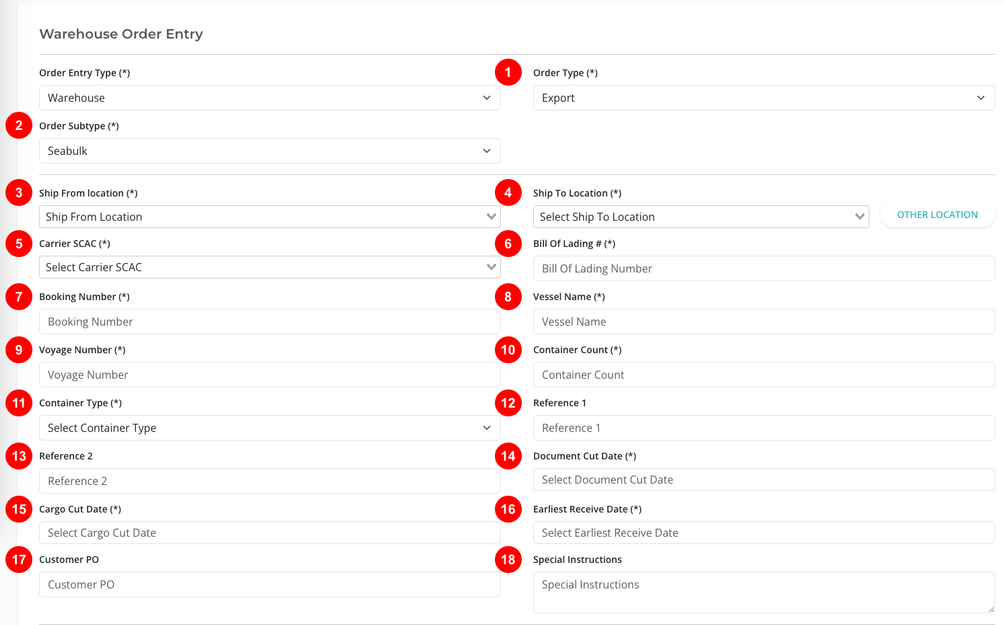
For Seabulk
- Order Type (*): Select Export.
- Order Subtype (*): Select Seabulk.
- Ship From Location (*): Select the origin location for the shipment.
- Ship To Location (*): Select the destination location for the shipment.
- Carrier SCAC (*): Enter the carrier's SCAC code.
- Bill Of Lading # (*): Enter the bill of lading number.
- Booking Number (*): Enter the booking number assigned for the ocean movement.
- Vessel Name (*): Enter the name of the vessel.
- Voyage Number (*): Enter the voyage number associated with the vessel movement.
- Container Count (*): Enter the total number of containers for this order.
- Container Type (*): Specify the type of container being used.
- Reference 1: Enter an internal or customer reference value.
- Reference 2: Enter an additional reference value, if needed.
- Document Cut Date (*): Select the document submission cutoff date.
- Cargo Cut Date (*): Select the cargo delivery cutoff date.
- Earliest Receive Date (*): Select the earliest date the cargo can be received.
- Customer PO: Enter the customer purchase order number.
- Special Instructions: Add any handling, routing, or processing notes for the shipment.
Contact Details
This section includes the contact details for the order. It has the following fields:
- Contact Name (mandatory)
- Contact Email (mandatory)

Product Details
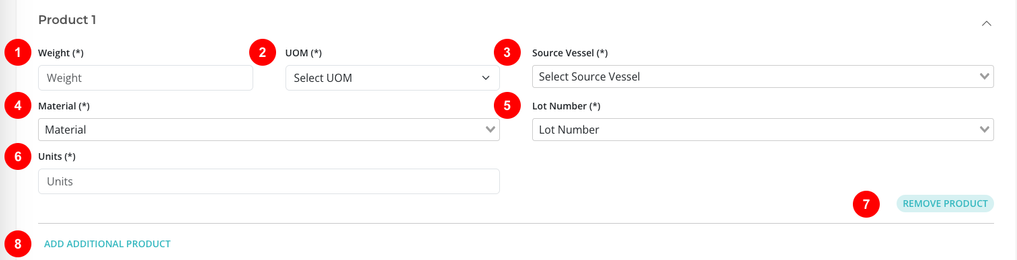
For Export Packaged
Each product line contains the material and quantity details for the order.
- Weight (Mandatory): Enter the weight of the product being shipped.
- UOM (Mandatory): Select the unit of measure for the product.
- Source Vessel (Mandatory): Enter the name of the source vessel.
- Material (Mandatory): Enter the material name or code.
- Lot Number (Mandatory): Enter the lot number for the product.
- Units (Mandatory): Enter the number of units being shipped.
- REMOVE PRODUCT: Removes the current product line.
- ADD ADDITIONAL PRODUCT: Adds another product line.
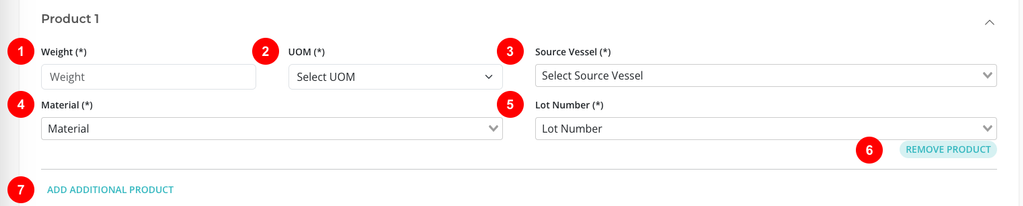
For Seabulk
Each product line contains the material and quantity details for the order.
- Weight (Mandatory): Enter the weight of the product being shipped.
- UOM (Mandatory): Select the unit of measure for the product.
- Source Vessel (Mandatory): Enter the name of the source vessel.
- Material (Mandatory): Enter the material name or code.
- Lot Number (Mandatory): Enter the lot number for the product.
- REMOVE PRODUCT: Removes the current product line.
- ADD ADDITIONAL PRODUCT: Adds another product line.
Submit the Order
When all required fields are completed, click SUBMIT ORDER to create the order.
Once an order has been submitted, it cannot be edited or deleted in OnTrack. To make changes or request its removal, contact Customer Support.