Viewing a Shipment Details
From the main page of the Truck module, you can get more information about a shipment just by clicking anywhere on its card.
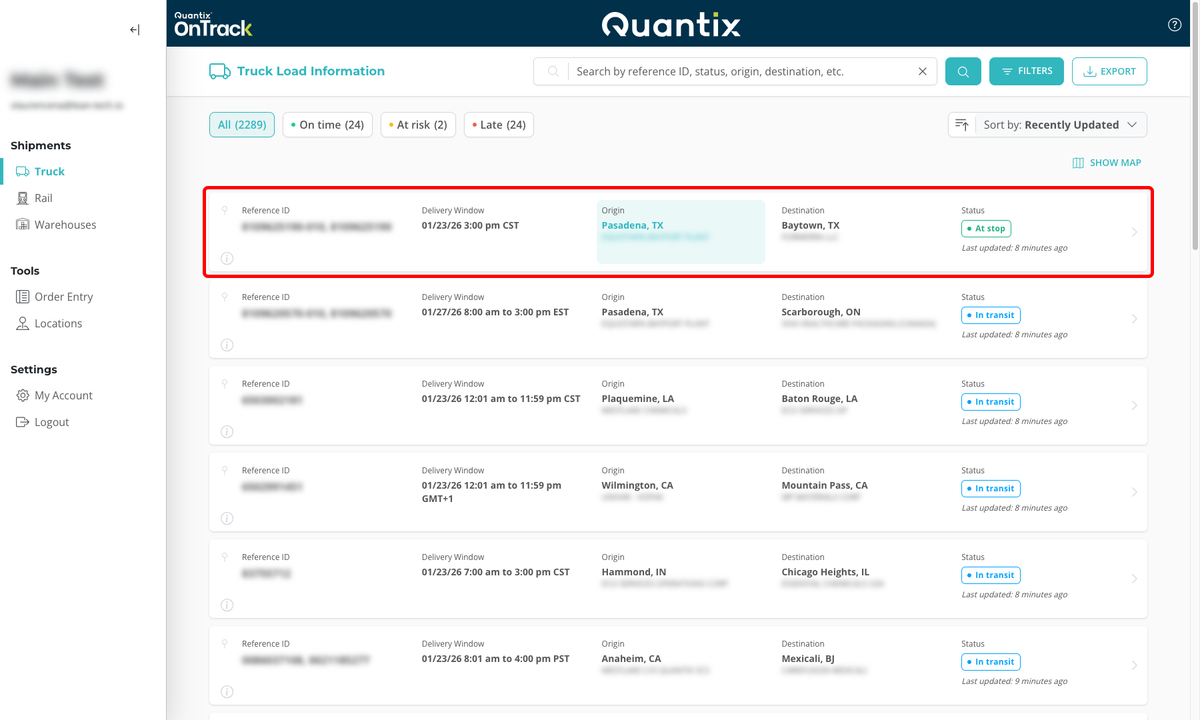
This opens the Shipment Details page, which contains all the information you need to track and monitor your shipment.
The information is organized into five distinctive sections:
Status bar

The first thing you notice is the Status bar, whose color gives immediate shipment status:
- Blue indicates that the shipment still doesn't have an ETA.
- Green indicates that the shipment's ETA is on time and that the truck will arrive within the customer's receiving hours as scheduled.
- Yellow or red would indicate that the truck is either at risk (yellow) or late (red).
For a more comprehensive understanding of ETAs, please visit Understanding ETAs.
The status bar also displays:
- Reference number
- Recipient name
- Equipment type
- Delivery window
- Estimated Arrival Time (ETA)
- Last update time
Load Details
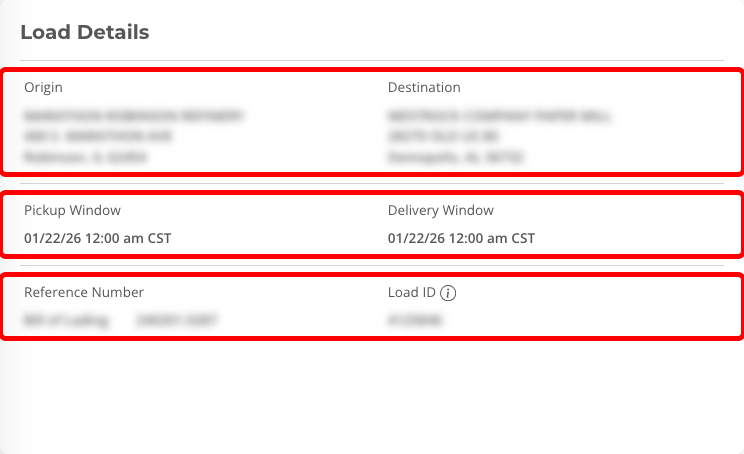
The first section on the Shipment Details page is the Load Details section.
This section provides key information about the shipment, including:
- The origin and destination.
- Pickup and delivery windows are listed under their respective locations.
- Any reference numbers associated with the shipment. The Reference Number is the number or numbers most familiar to the shipper, while the Load ID is used for internal Quantix reference.
Delivery Details
OnTrack records the loading and delivery times in the Delivery Details section of the Shipment Details page.
There are distinct sections for the pickup and delivery events. In this example, you'll also notice that this shipment was both loaded and delivered late, as denoted above each event time.
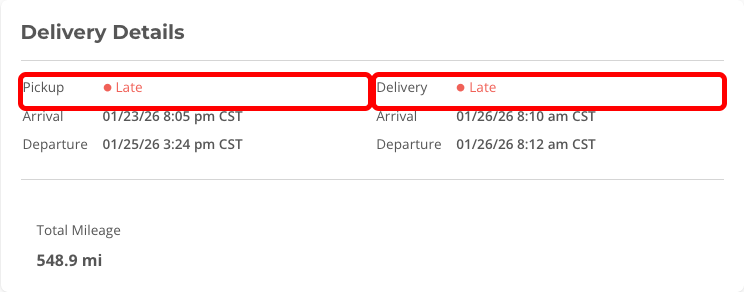
This means that the driver loaded outside of the loading window and also made delivery after the delivery window. If the driver were On-Time, it would be denoted in green, and if the driver were At-Risk, it would be denoted in yellow.
Times are recorded below to show the time the driver arrived to load and the time the driver left the loading site.
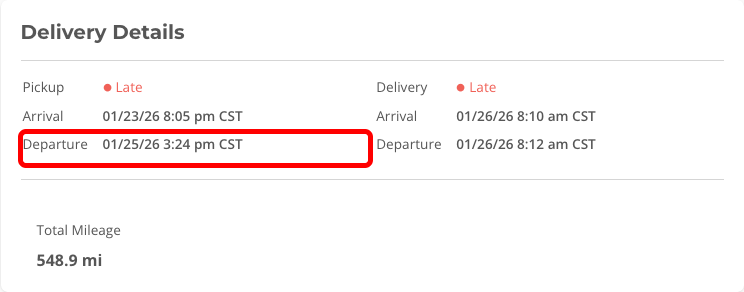
The example above shows that the driver was there for 2 hours and 30 minutes. OnTrack has a notification feature that will allow you to set up detention notifications for scenarios like this so that you will receive email warnings and notifications when a shipment gets close to and runs into detention times.
Delivery arrival and departure times are also recorded under the delivery side.
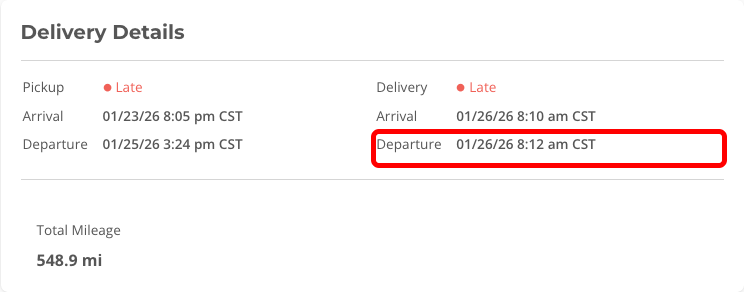
And if you hover over any of the delivery times, it will tell you the source of the information.
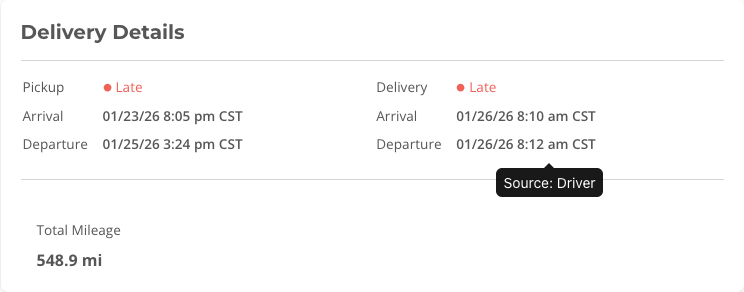
In most cases, OnTrack will utilize the location geofence to determine arrival and departure. However, there may be instances where OnTrack will need to use driver information to populate times. In those cases, it will say Driver or TMW.
Arrival time is calculated by the driver's first location ping within the loading or delivery geofence. Once the driver leaves the geofence, the departure time is recorded.
Transport Details
Below the Delivery Details is the section for Transport Details. Here, you can see the equipment being used on the shipment, the carrier (redacted here for privacy), and the shipment's current status.

Map View
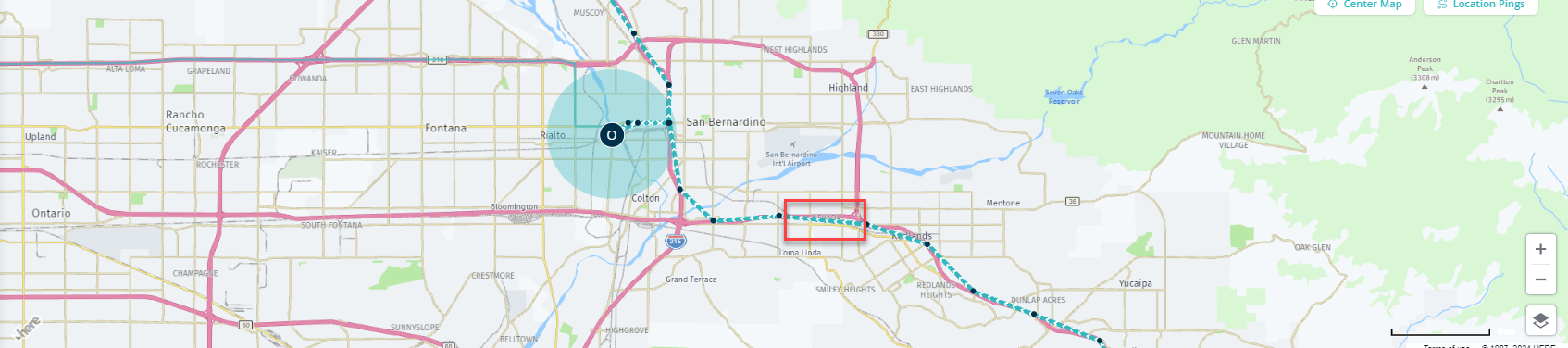
One of the most prominent features of OnTrack is the Map View, located at the bottom of the Shipment Details page.
This is an interactive map that shows the shipment's Origin (O) and Destination (D), its historic trail, and the truck's current location (marked with a white circle surrounded by a larger blue location icon).
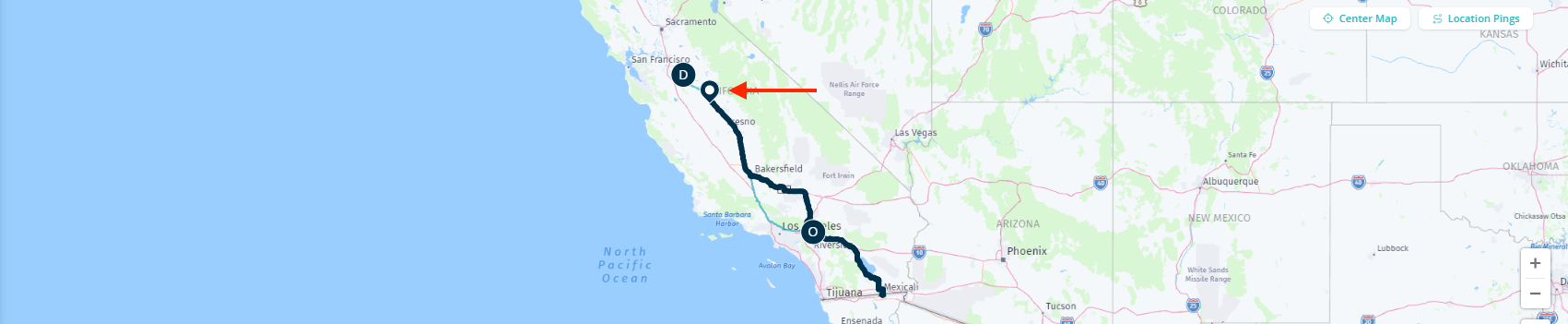
The map can be zoomed in and out by using the mouse's scroll wheel or the +/- buttons in the bottom right corner of the map.
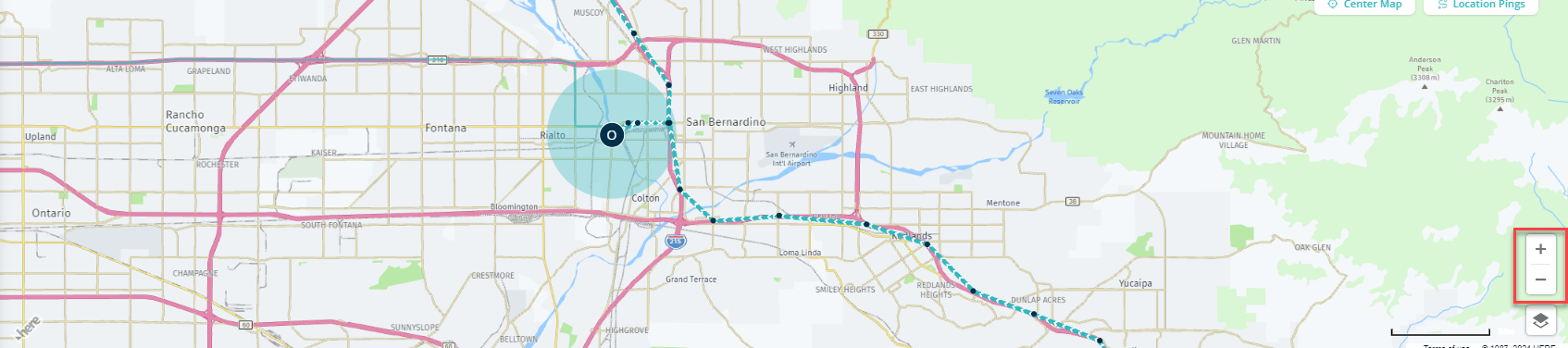
While we zoom in on the origin, we can see that there's a blue circle around the location —that's the location's geofence.
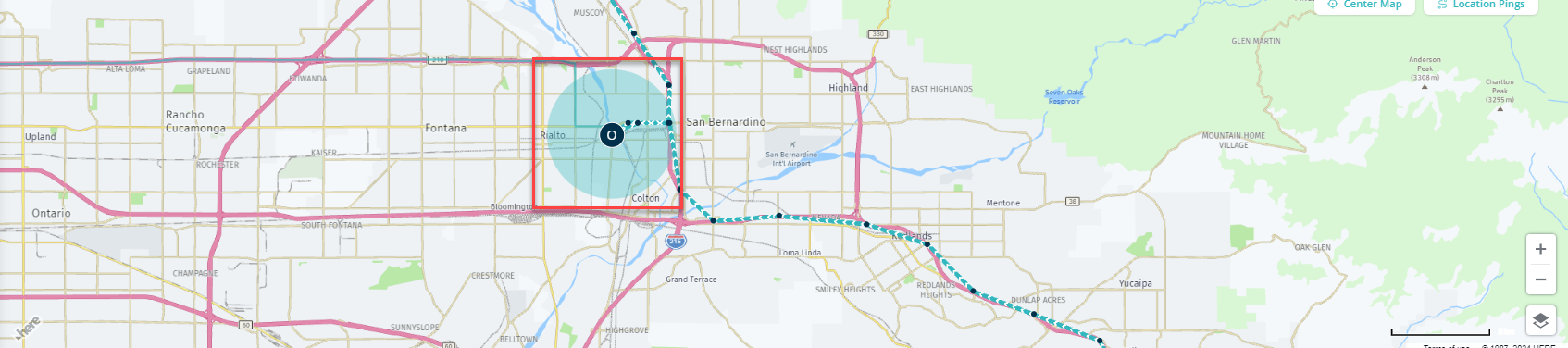
The truck's arrival and departure times are based on when the truck enters the geofence (arrival) and when the truck leaves the geofence (departure). If a truck starts within the geofence, that's when the arrival time will start.
Each dot on the map represents a location "ping." These pings are typically gathered once every few minutes, but the intervals can vary depending on numerous factors.
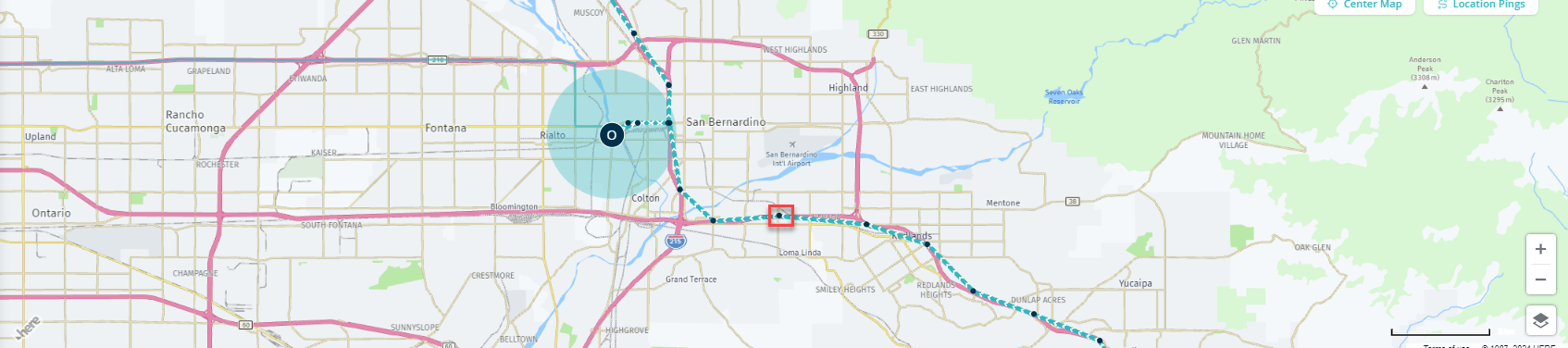
And, if you look very closely, you'll see that the light blue trail is made up of arrows that point in the direction of the movement, making it easier to tell where your truck is heading at any given time.