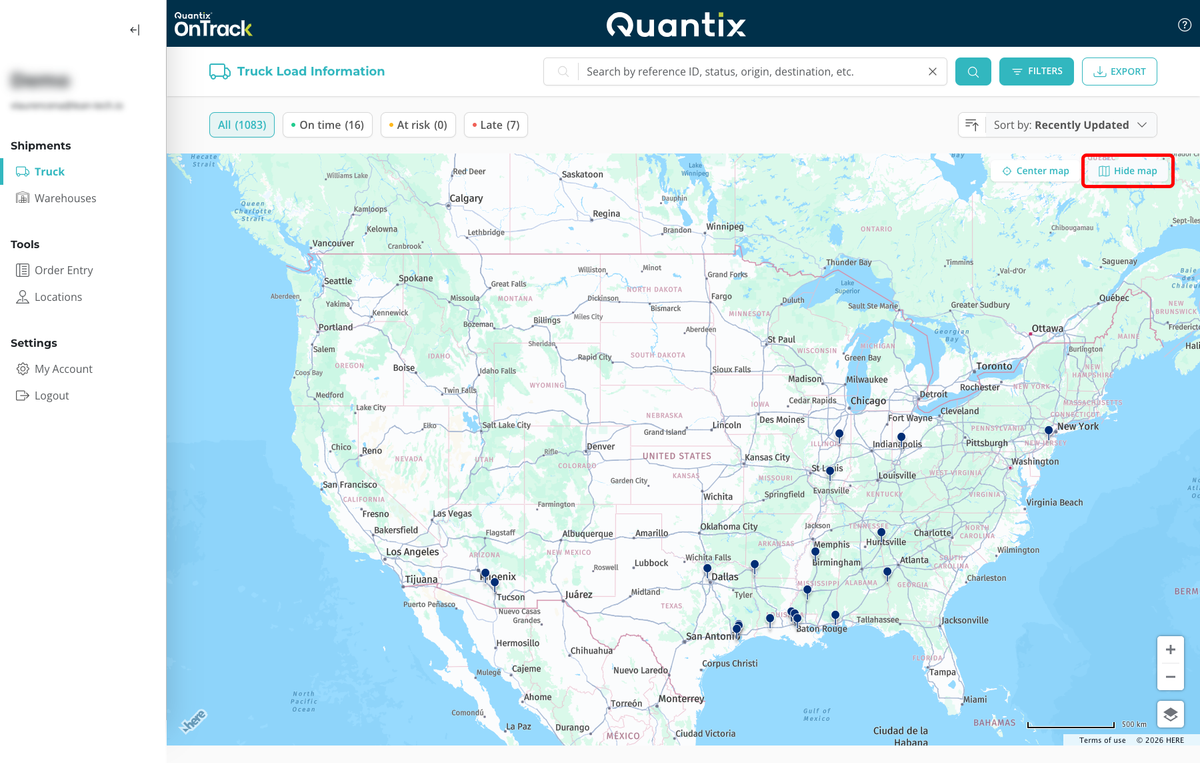
Show Map Feature
The Truck Module has a Show Map feature that allows you to view your filtered shipments on a map.
To see the map, click the SHOW MAP button on the right side of the screen.
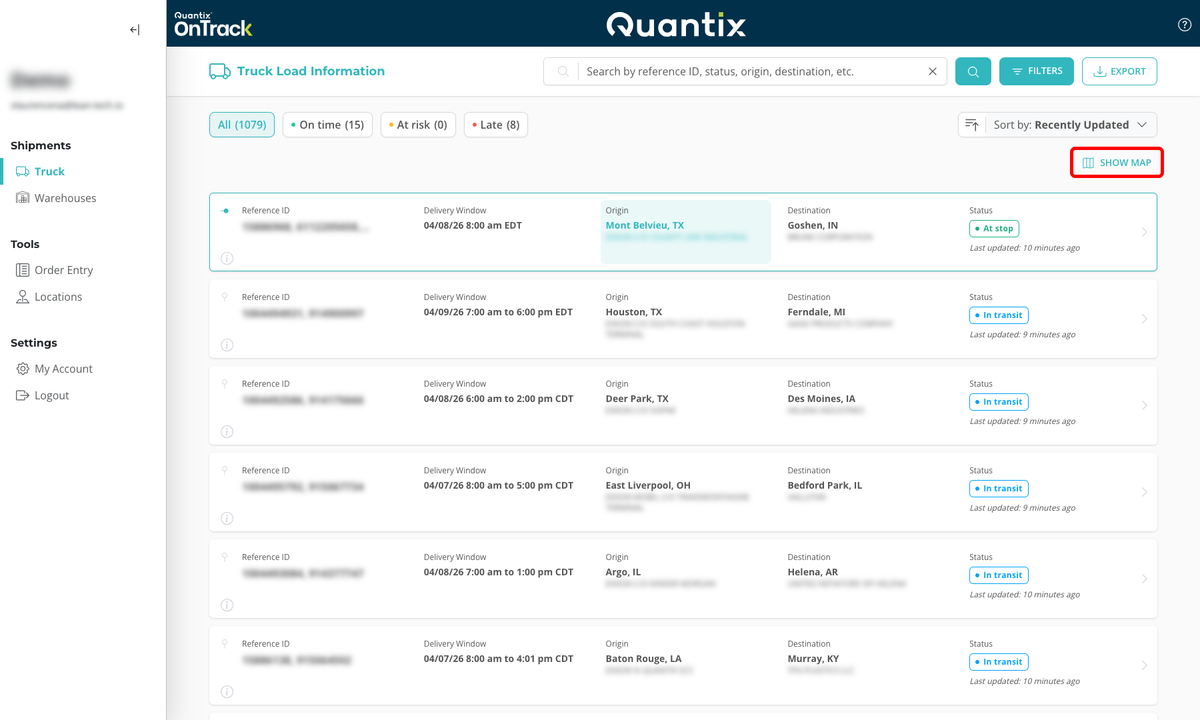
This button will open a map that will show only the shipments that have been filtered on the Truck Module main page.
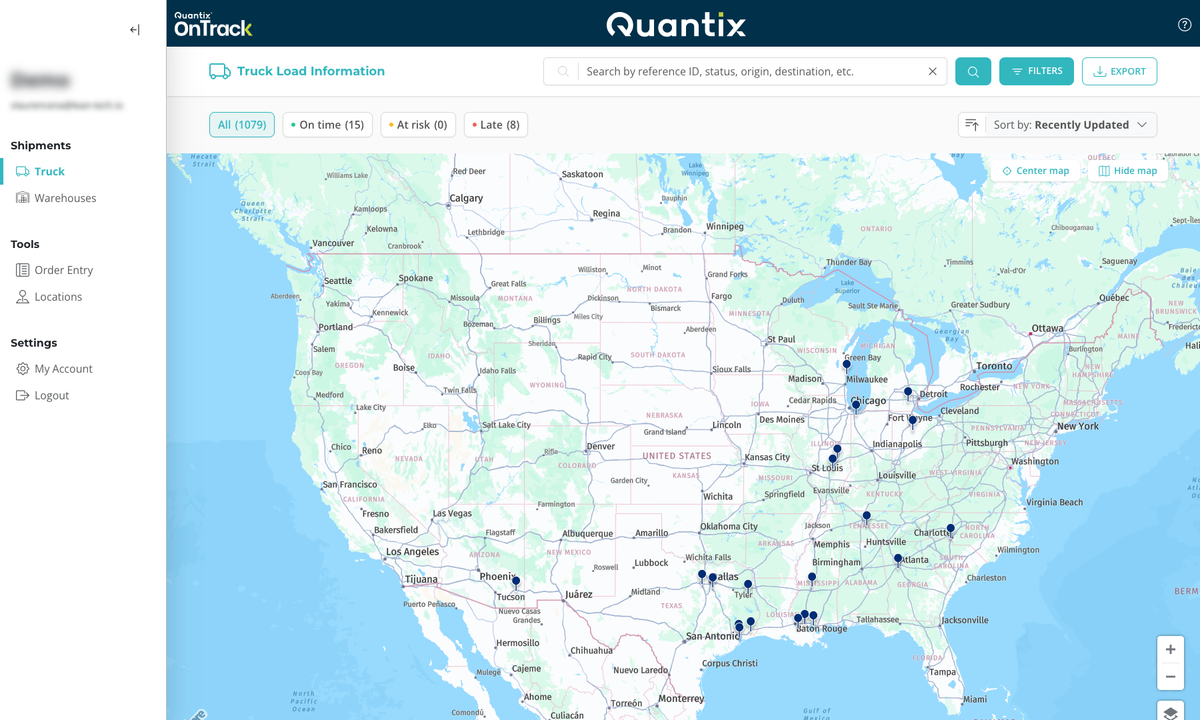
Within the map, you can select any shipment by simply clicking on its pin. This will open the shipment details card.
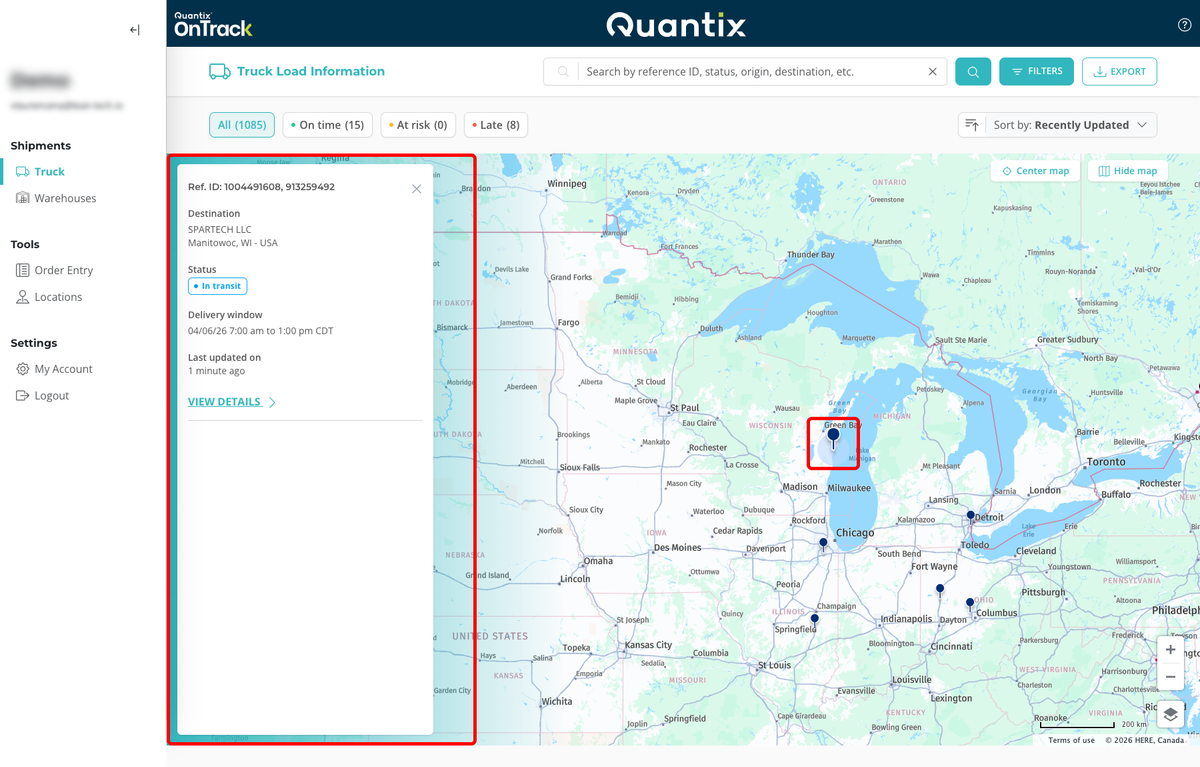
Then, you can go to the shipment's full details page by clicking the VIEW DETAILS button on the shipment details card.
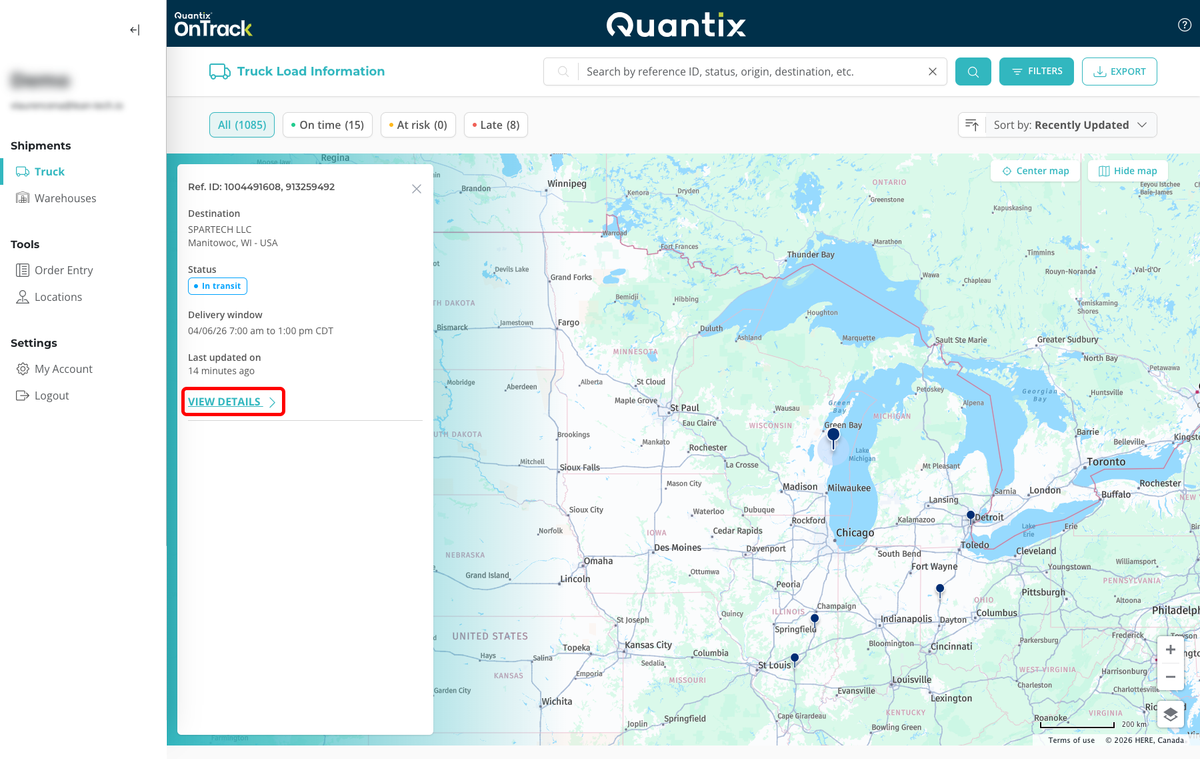
You can also change the displayed shipments by changing the filters or searching for a specific shipment.
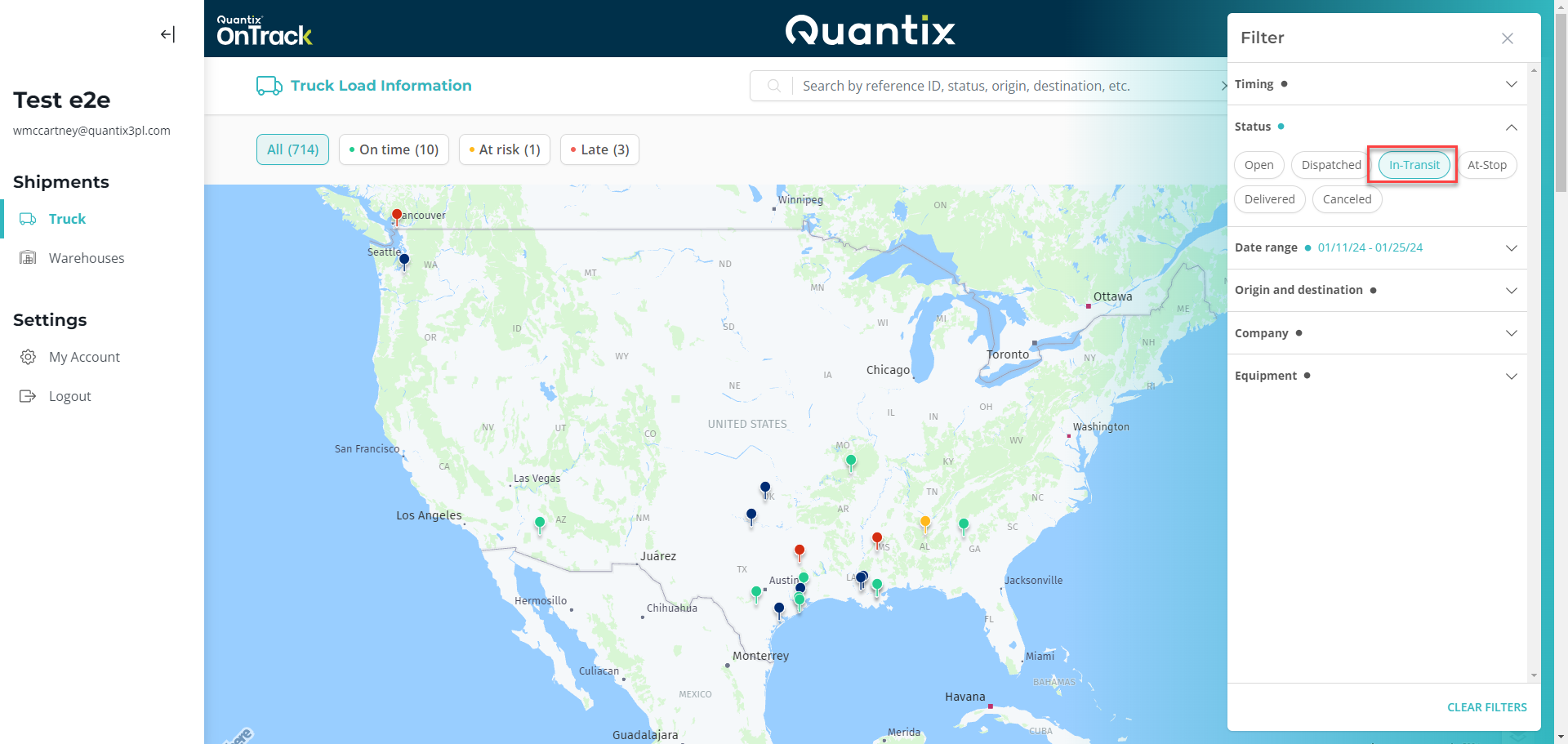
In the example below, we've added the filter to show only shipments with In-Transit status. Also, you can see that the pins are in different colors. These colors denote the shipment's timing:
- Blue means the shipment has not started yet.
- Green means that it is on time.
- Yellow shows shipments at risk.
- Red shows late shipments.
To close the map feature and return to the card list view, click the Hide Map button at the top right of the map.