Using Shipment Filters
If you're looking for a wider array of shipments, OnTrack offers a very rich, user-friendly filtering feature that allows you to show shipments based on certain criteria.
This is how you can use shipment filters:
-
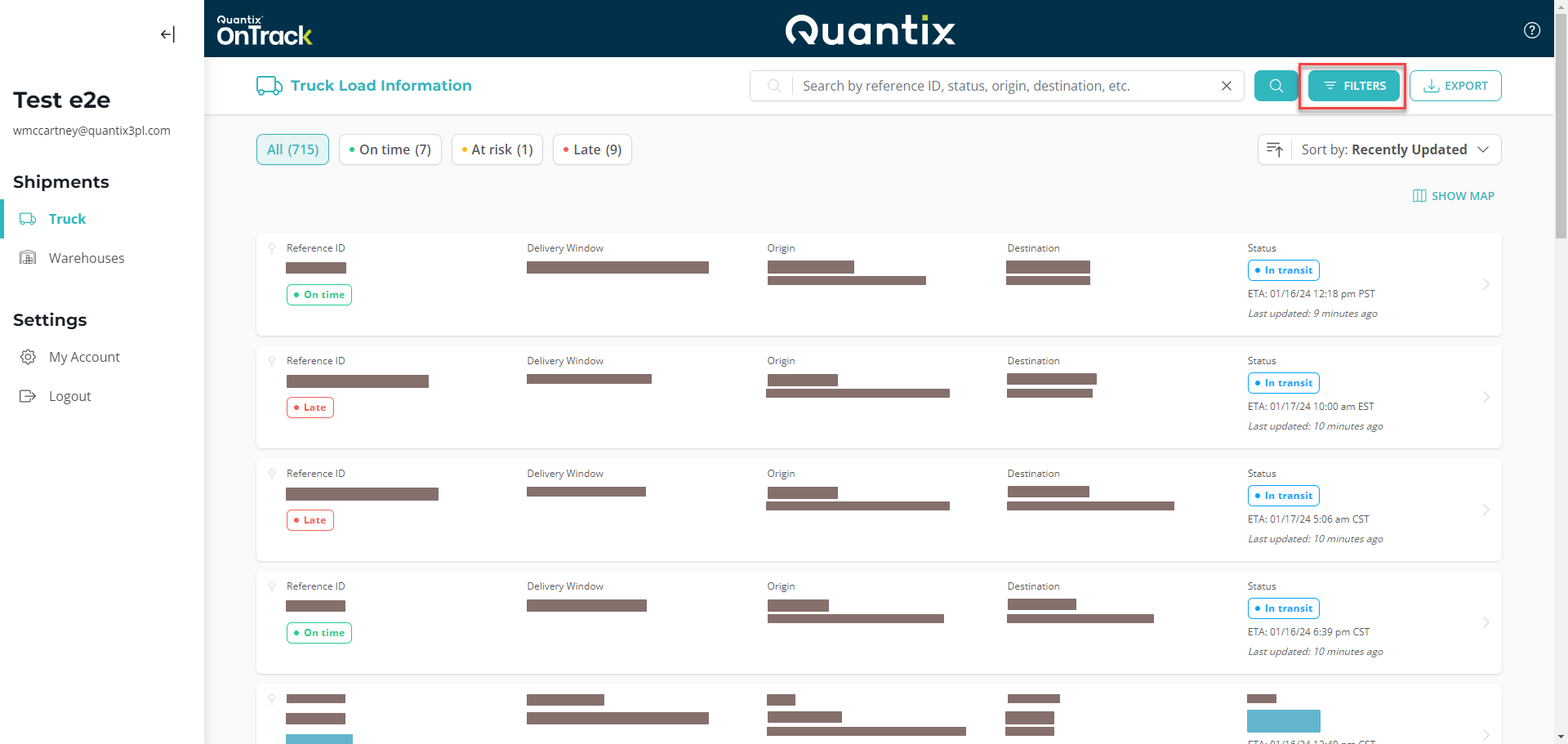
Click the FILTERS button at the right of the search bar.
-
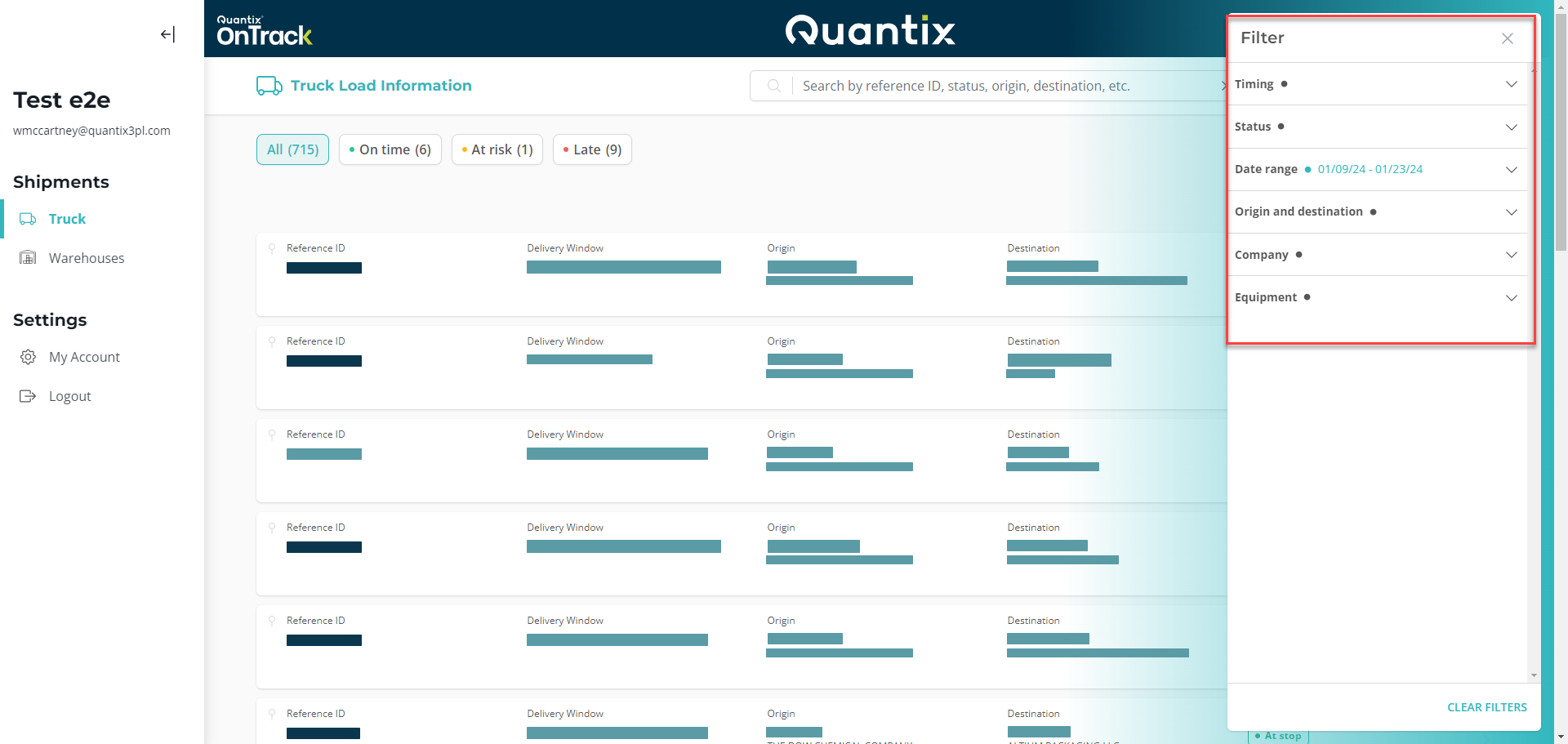
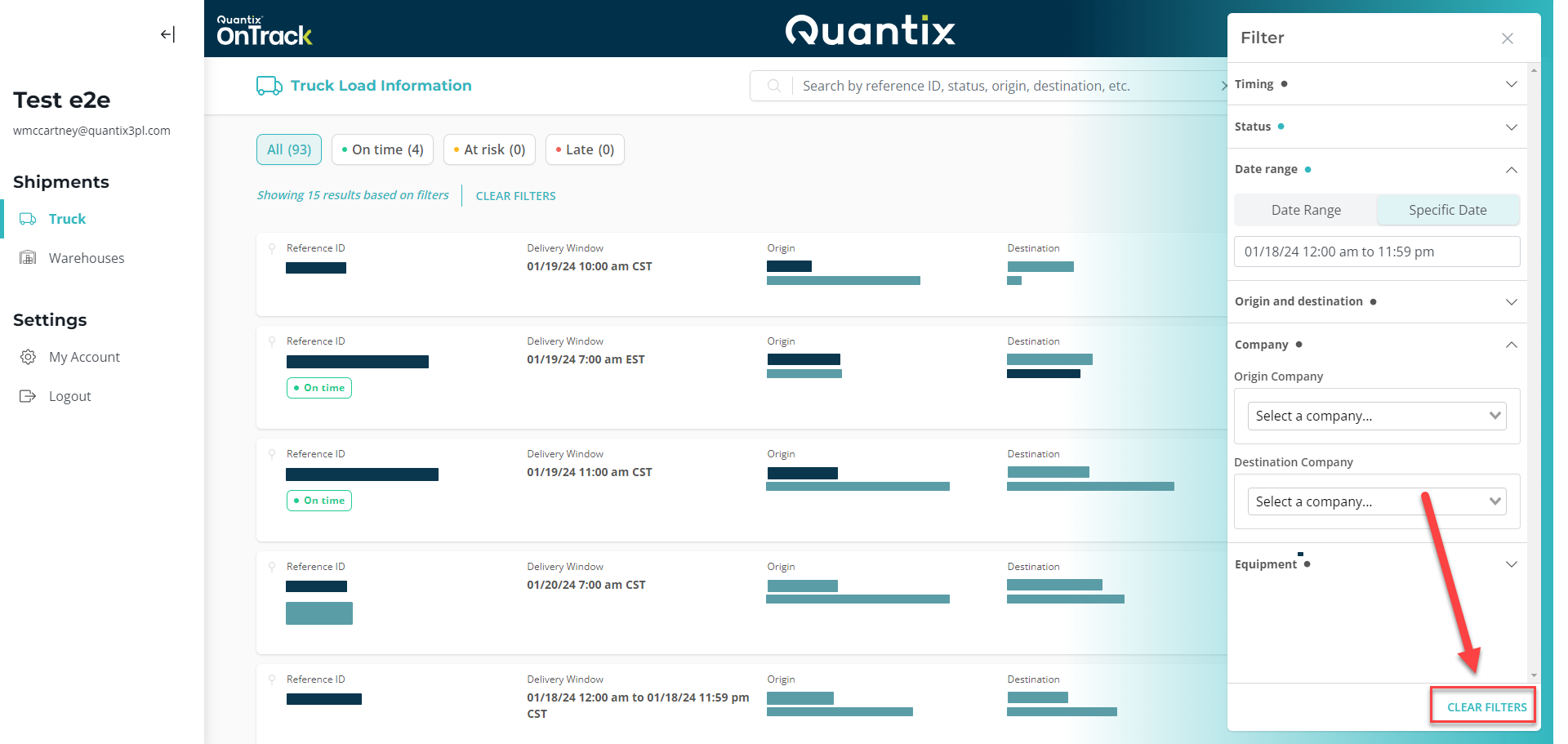
Now, you'll be presented with the filtering menu.
-
You can expand any of the filter criteria to match and set up your specific filtering needs. These are all the criteria you can use to filter:
-
Timing: Shows shipments based on whether they are/were On time, At risk, or Late.
-
Status: Shows shipments by status:
- Open shipments have no driver assigned.
- Dispatched shipments have a driver but have not started yet.
- In-Transit shipments are currently moving between stops.
- At-Stop shipments are either loading or delivering depending on whether they are at the loading location or delivery location.
- Delivered shipments have been completed.
- Canceled shipments were canceled and did not move.
-
Date range: The default date range is from 7 days ago to 7 days from now, so you'll see two weeks of shipments when you first log in. You can change to any range of dates you'd like to see, or you can swap to show just a single date; you can pick any date you want.
-
Origin and destination: You can filter by any loading or delivery city or by an entire state. You can also select multiple cities or states. So, if you are looking for shipments out of Atlanta and Chicago, you can select both cities to show all the results that meet those criteria.
-
Company: To filter your shipments by loading or delivery company, type in the name of the company you're looking for. You can select multiple companies, which is helpful if you are in charge of several consignees. By doing this, you can see only their shipments and nothing else.
-
Equipment: You can see trucks based on the type of equipment being used (Liquid, Dry Bulk, Drayage, Dry Van, ISO Containers, and Intermodal).
-
Shippers: You can see trucks based on the shipper. You can select multiple companies.
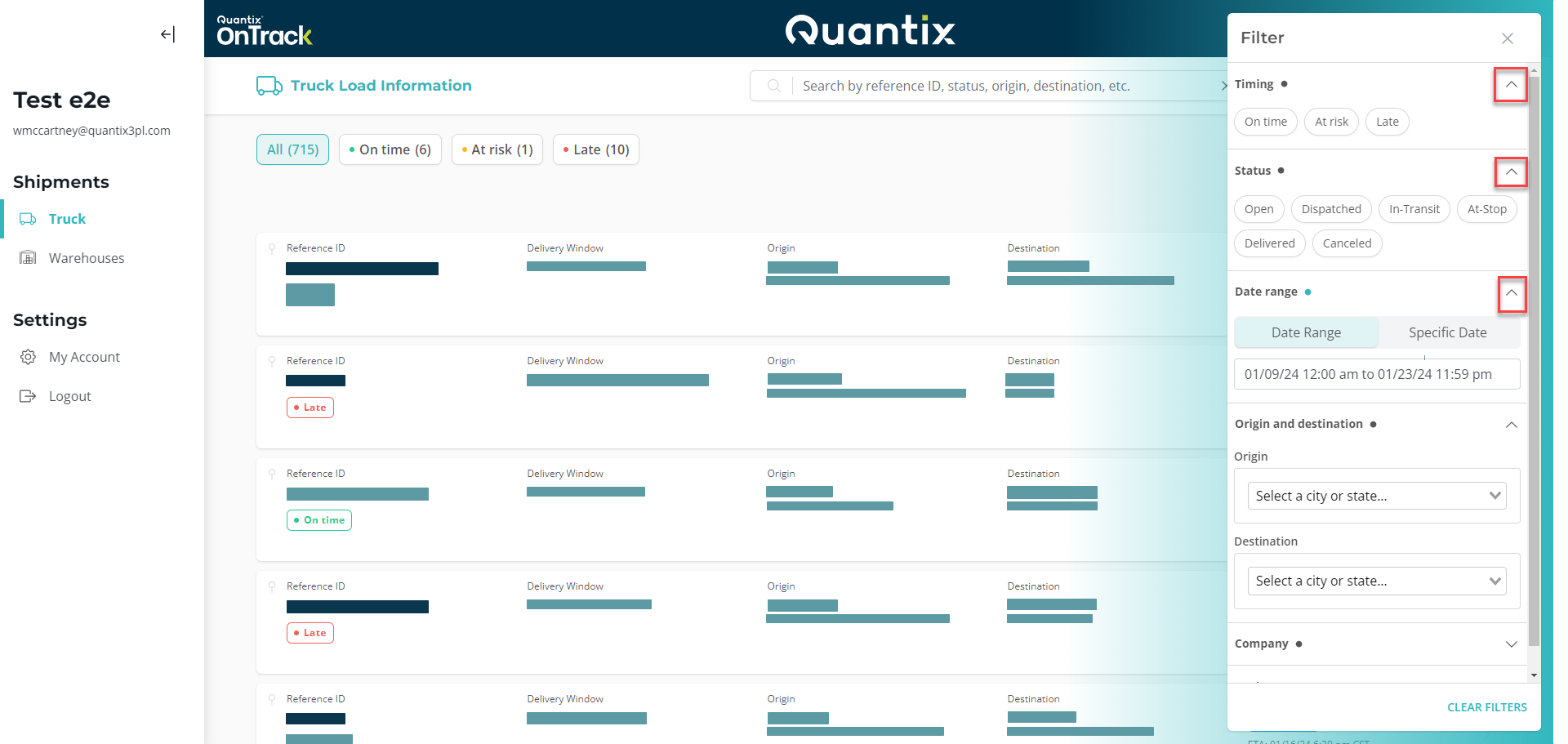
Note that the active criteria will be highlighted with a blue dot on their right (instead of the dark dot).
Finally, click outside the filtering menu to go back to the filtered shipments list.
Clearing filters
To stop using filters, hit the CLEAR FILTERS button at the bottom of the filtering menu.
Example
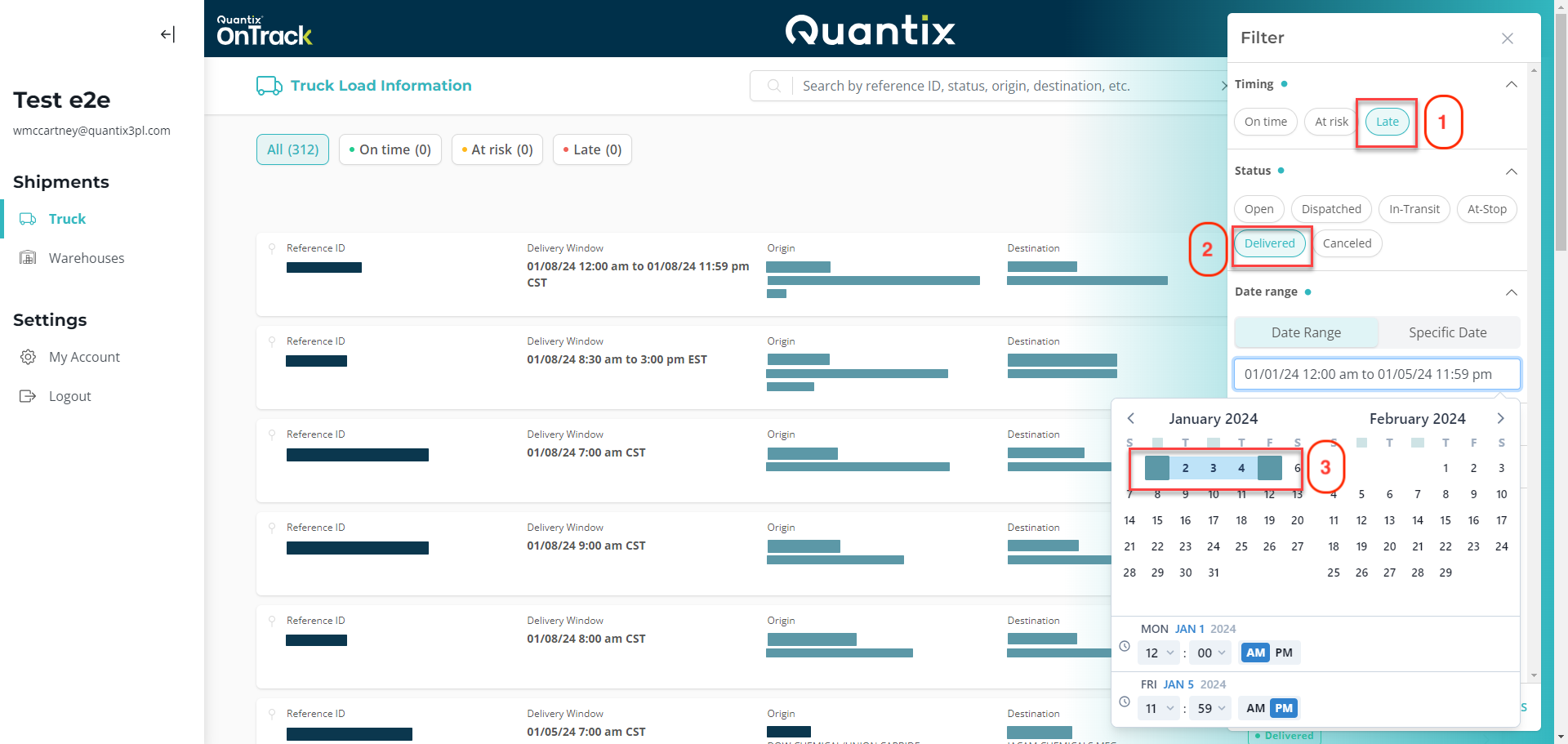
Filters can be combined in any combination you wish to use. For example, if you wanted to see all the late shipments for the first week of January 2024, you would simply:
-
Check the Late criteria in the Timing section.
-
Check the Delivered criteria under the Status filter.
-
Change the dates to show 01/01 to 01/05 in the Date range section.