Saving Filters
OnTrack allows you to save your filters, making it easier later to quickly access the shipments you want to see.
-
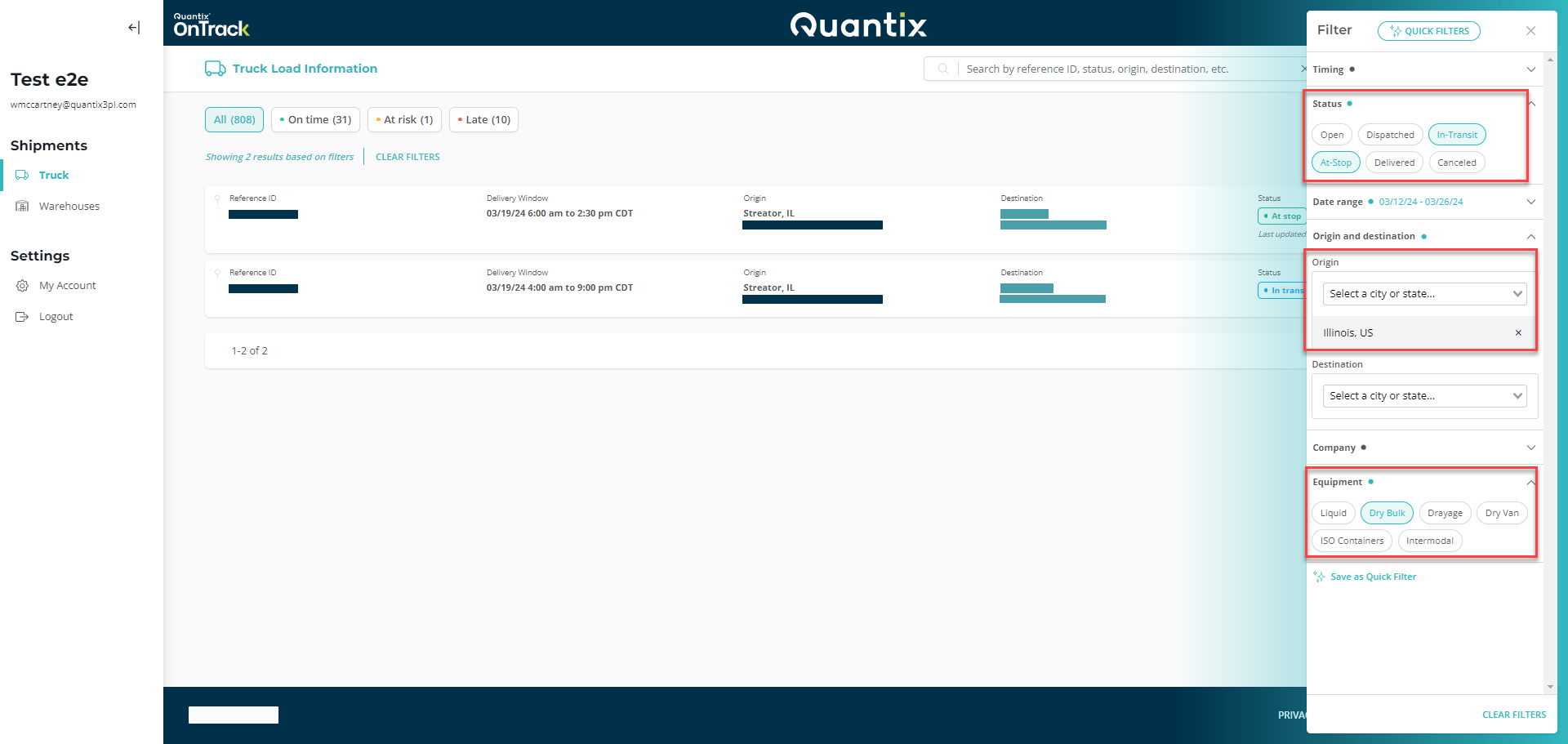
The first step is setting the filtering criteria you want to see by following the instructions explained in Using Shipment Filters. In the following example, we only see shipments that are moving (In-Transit status) or at the loading location or delivery location (At-Stop status), whose origin city is Illinois, and are Dry Bulk shipments.
-
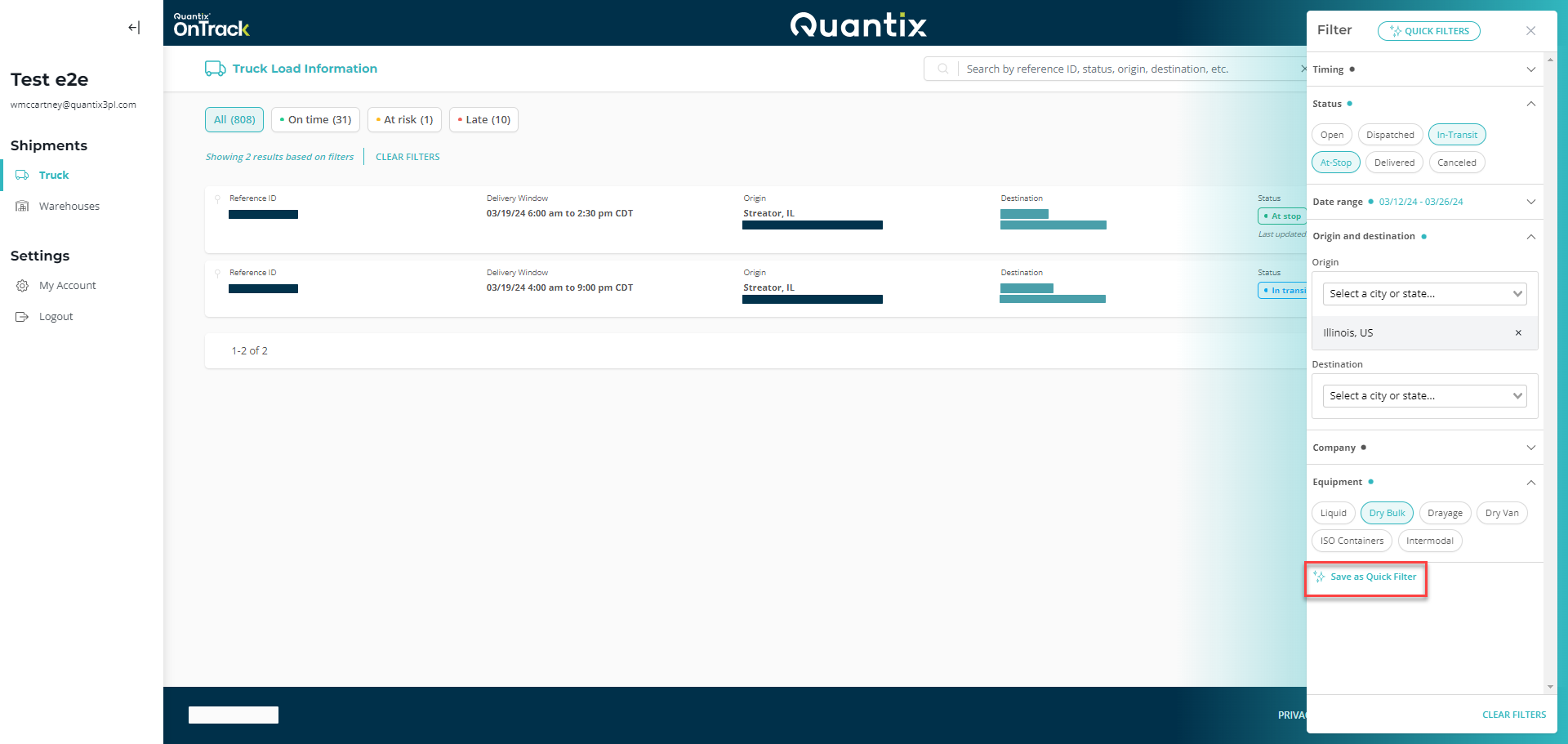
Once you've selected the criteria you want, you need to click the Save as Quick Filter button at the bottom of the filtering options.
-
You must now add a name to the filter that you've created (in this example, we named it My Desk) and then hit the SAVE button.

-
Once you hit the SAVE button, nothing appears to change. However, your quick filter has been saved. To find it and use it, you need to select the QUICK FILTERS button at the top of the filtering menu.

-
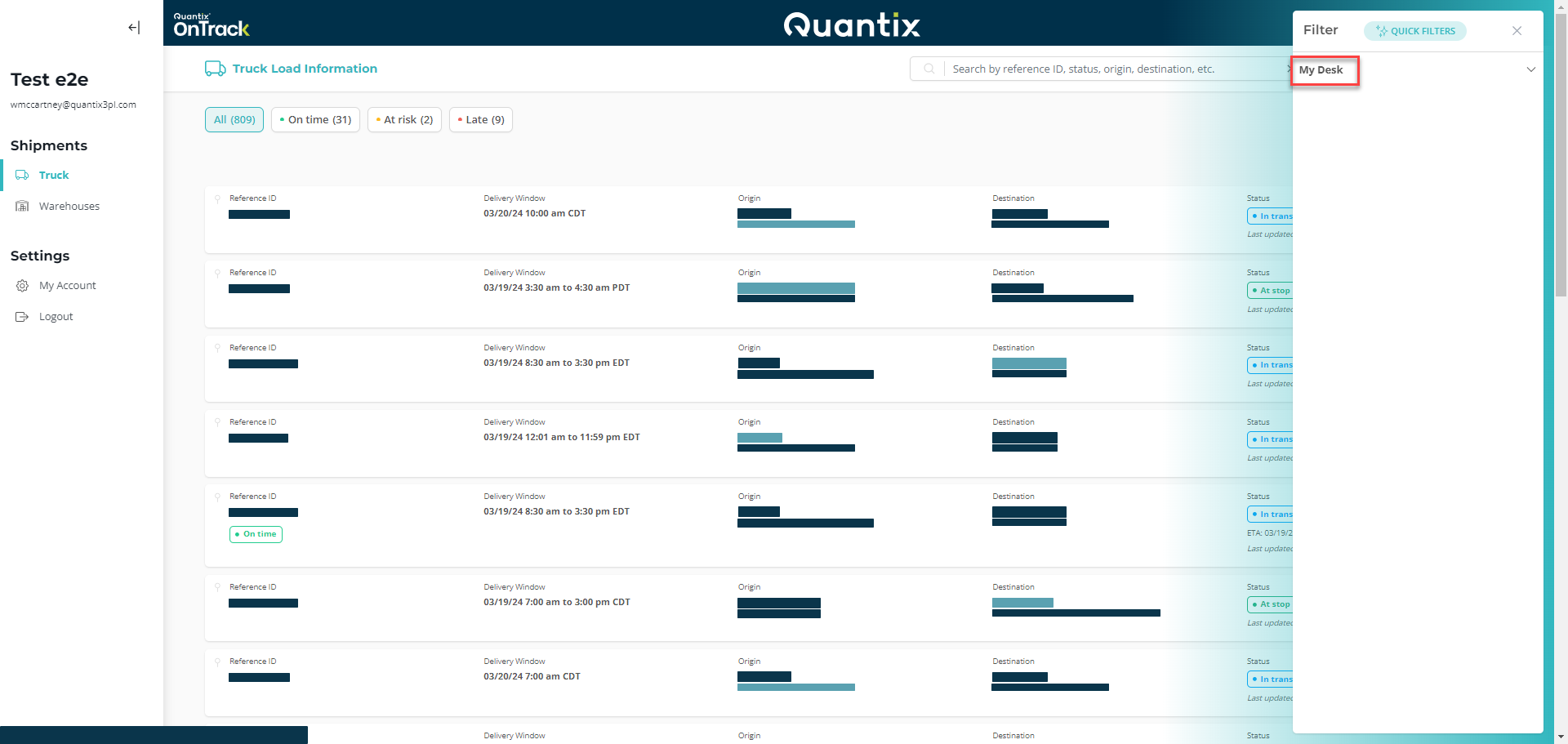
Now, you can see all your saved filters. Click on the filter you want to apply (in the example, My Desk).
-
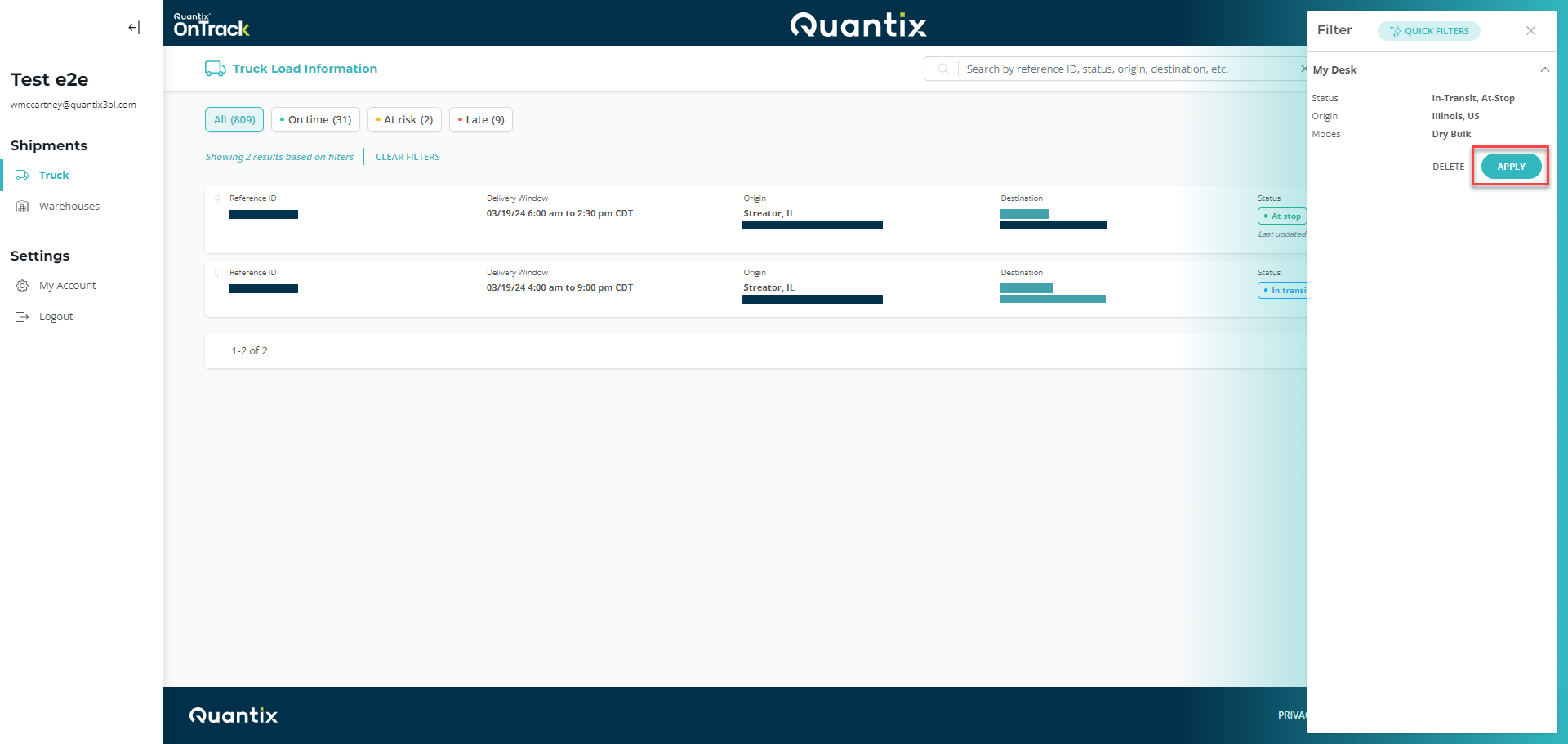
Finally, the menu will expand the filter, show its filtering criteria, and give you two options: DELETE the saved filter or APPLY it.