Creating an Order
Creating an order is a straightforward process facilitated by a user-friendly form.
To access this form:
-
Click the Order Entry menu button.
-
Make sure you are on the CREATE ORDER tab.
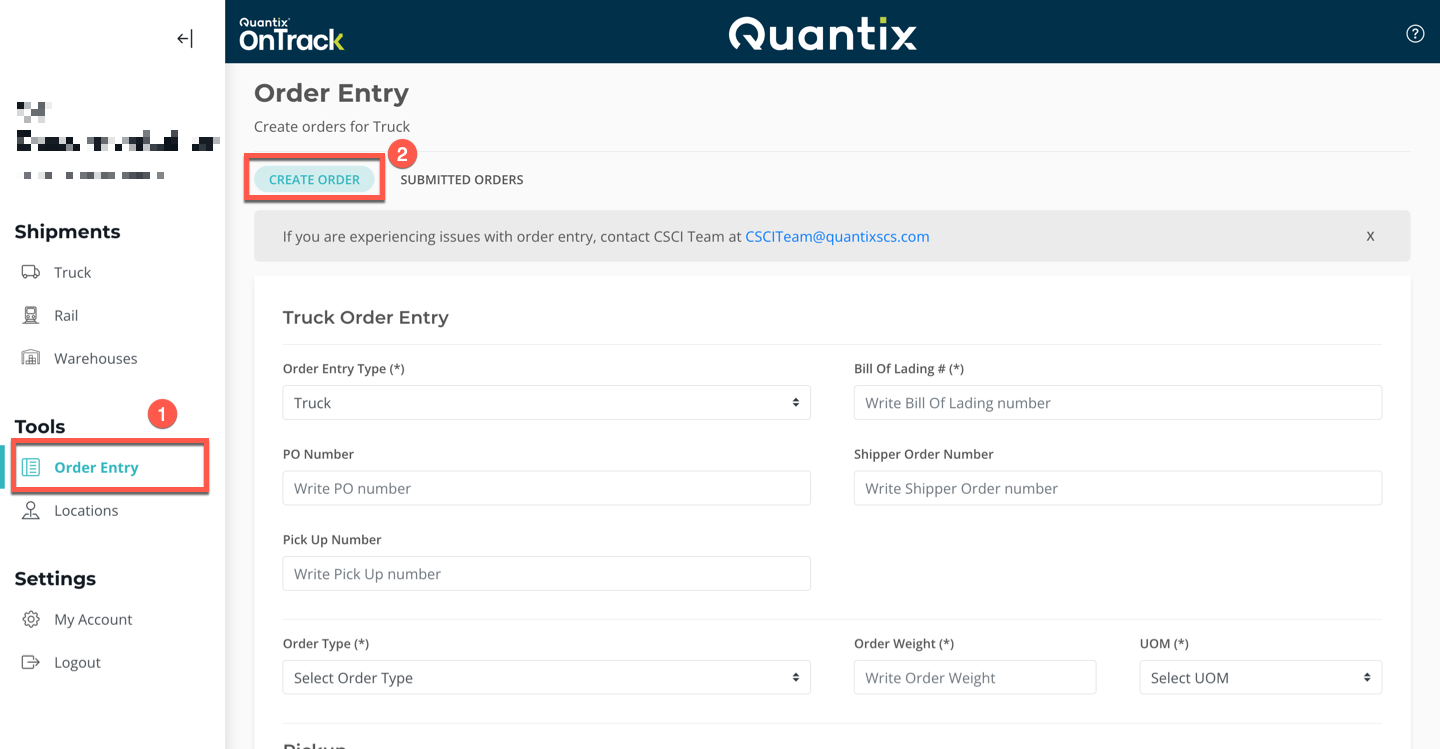
The form provides several fields to complete, divided into four main sections:
Order Entry
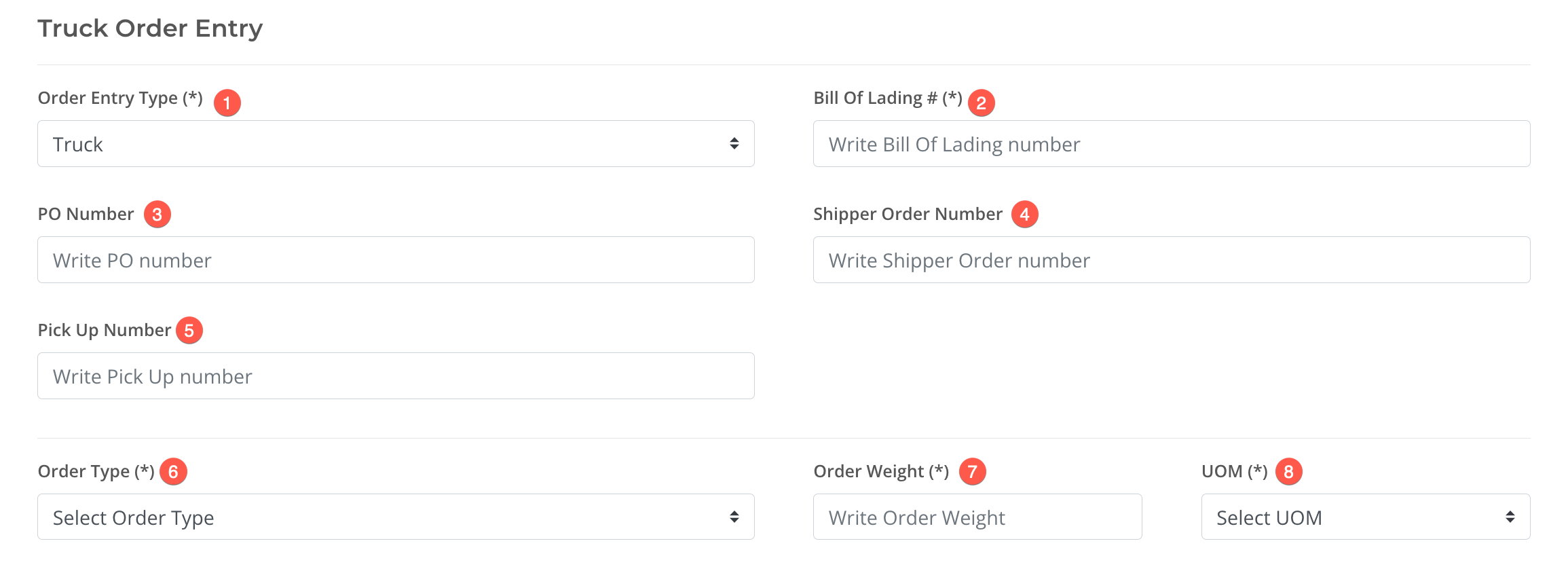
This section includes information related to the order itself and its content. It has the following fields:
- Order Entry Type (mandatory): For now, only truck orders are available.
- Bill of Lading # (mandatory)
- PO Number
- Shipper Order Number
- Pick Up Number
- Order Type (mandatory): Possible values are Dry Bulk, Liquid, and Van Freight.
- Order Weight (mandatory)
- UOM (mandatory): Possible values are Pounds (lbs), Kilos (kgs), Gallons, and Tons.
Additionally, depending on the Order Type selected, new fields will appear related to the material being transported.
Pickup
The second section of the form is related to the pickup location and timing.
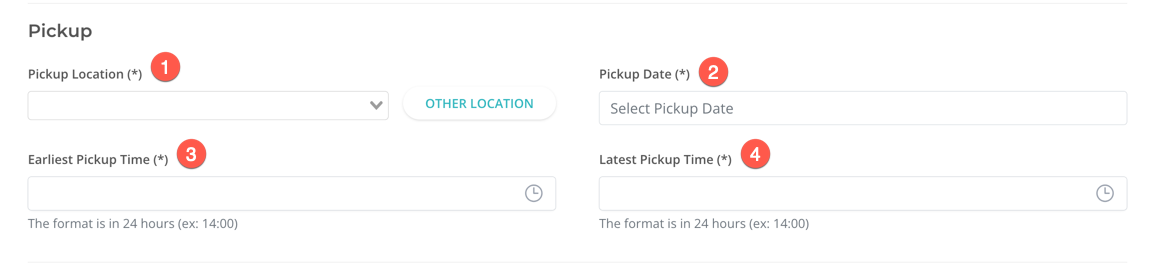
- Pickup Location (mandatory): It expands a dropdown menu with a list of warehouses.
- Pickup Date (mandatory): Prompts a calendar to choose a date.
- Earliest Pickup Time (mandatory)
- Latest Pickup Time (mandatory)
Delivery
Similar to the second section, the third section of the form is related to the delivery location and timing.

- Delivery Location (mandatory): It expands a dropdown menu with a list of warehouses.
- Delivery Date (mandatory): Prompts a calendar to choose a date.
- Earliest Delivery Time (mandatory)
- Latest Delivery Time (mandatory)
Contact and Comments
The final section of the form contains fields for the contact person regarding this order, as well as notes related to the shipment or directed to the carrier.
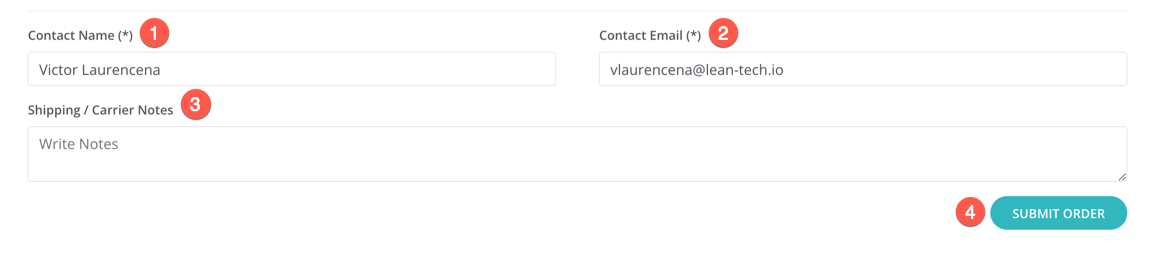
- Contact Name (mandatory)
- Contact Email (mandatory)
- Shipping / Carrier Notes
- SUBMIT ORDER: Click this button to create the order.
Submitted orders can't be edited or deleted through OnTrack, and to do so, you'll need to contact Customer Support.